 PROMPT TO PRODUCTION
Chapter 4: Welcome to Claude Code
Quick Start (5 minutes)
Let’s skip the theory and get Claude Code running. You will install it, launch it, and build a utility function before reading another word.
Install Claude Code
Option A – Native installer (no Node.js needed):
# macOS / Linux
curl -fsSL https://claude.ai/install.sh | bash

# macOS via Homebrew
brew install --cask claude-code

# Windows PowerShell
irm https://claude.ai/install.ps1 | iex
Option B – NPM (requires Node.js 18+):
npm install -g @anthropic-ai/claude-codeVerify it worked:
claude --version
# Should show: claude-code version X.X.X
Authenticate
claudeThe first launch opens a browser window. Sign in with your Claude Pro, Max, or Team account, then return to the terminal. You should see:
Welcome to Claude Code!
Working directory: /Users/you/project
Ready! How can I help you code today?

>
Build something in 60 seconds
Create a scratch project and launch Claude Code:
mkdir hello-claude && cd hello-claude && git init
claude
Type this prompt:
> Create a file called slugify.js that exports a function
  which converts any string into a URL-friendly slug.
  Include handling for special characters and multiple spaces.
Claude writes the file, shows you the code, and asks for
confirmation. Press y. Then:
> Write tests for slugify.js using Node's built-in test runnerPress y again. Run the tests:
> Run the testsYou just installed Claude Code, wrote a utility function, and verified it with tests. Everything from here deepens what you already know works.
Core Concepts (15-20 minutes reading)
What Claude Code Actually Is
Claude Code is a command-line tool that lets you develop software through conversation. Instead of typing code character by character, you describe what you want and Claude reads your files, writes new ones, edits existing ones, runs commands, and explains its decisions.
Traditional:  You --> Editor --> type every character --> save --> test
Claude Code:  You --> describe feature --> review --> done
It is not the same as pasting code into a chat window. Claude Code can see your entire project, modify files directly, and run terminal commands – all without copy-paste.
Pricing (be informed before you start)
Claude Code requires a paid subscription:
- Pro ($20/month): Good for learning and part-time use. Moderate usage limits.
- Max ($100-200/month): For full-time development. 5-20x more usage than Pro.
- Team ($30/user/month): Collaboration features, centralized billing. Minimum 5 members.
- Enterprise: Custom pricing, can integrate with AWS Bedrock or Google Vertex AI.
The skills you learn in this book work with any AI coding tool. Start with what fits your budget.
System Requirements
- Operating system: macOS, Linux, or Windows (via WSL)
- Node.js 18+ (for NPM installation only; the native installer has no dependency)
- Git (recommended; Claude Code uses git status for context)
- Internet connection (required; Claude Code calls the Claude API)
Rate Limits
Usage limits vary by subscription tier. Pro plan users have moderate
limits suitable for learning and part-time use. Max plan users get
significantly higher limits for full-time development. If you hit a rate
limit, wait a few minutes and continue. The /compact
command (Chapter 9) helps you use context efficiently and stay within
limits.
The Interface
When you run claude, you enter an interactive
session:
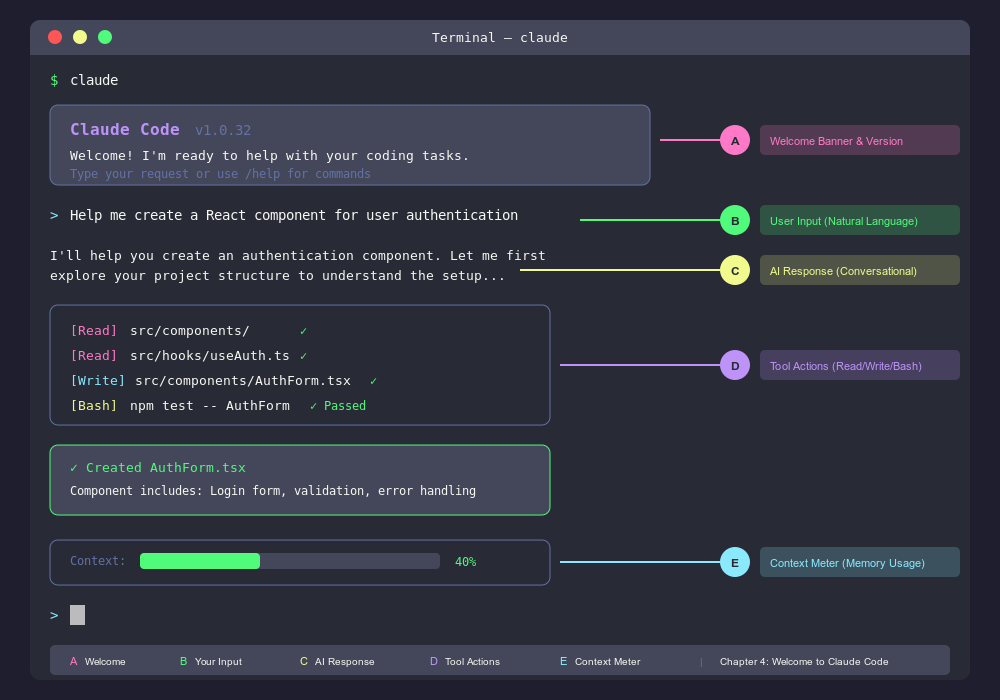 Figure 4.1: The Claude Code terminal
interface showing project context, git status, and the interactive
prompt.
Figure 4.1: The Claude Code terminal
interface showing project context, git status, and the interactive
prompt.
Claude Code v2.0.0
Working directory: /Users/you/project
Git: Clean working tree
Model: Claude Sonnet
Context: 0% used (0/200,000 tokens)

>
Key elements:
- Working directory – your current project location
- Git status – tracks what has changed
- Context meter – how much of Claude’s “conversation memory” is used (more in Chapter 9)
- Prompt (
>) – where you type requests
Essential Commands
Slash commands (inside a session):
/help           # Show all available commands
/clear          # Clear conversation history (free up context)
/model sonnet   # Switch to Sonnet model (default)
/model opus     # Switch to Opus model (more capable, higher cost)
/exit           # Exit Claude Code (or press Ctrl+D)
Command-line flags (when starting):
claude                          # Interactive mode
claude "your prompt here"       # Single query, then exit
claude -p "your prompt"         # Print mode (non-interactive)
claude -c                       # Continue last session
claude --model opus             # Use Opus instead of Sonnet
Piping data in:
cat error.log | claude -p "What's causing these errors?"
git diff | claude -p "Review these changes for issues"
The Permission System
By default, Claude asks before making changes:
Claude: I'll create a new file: src/auth.js
Create this file? [y/n/view]y– proceedn– cancelview– show the content first
You can change this behavior:
claude --permission-mode auto   # Auto-accept all changes
claude --permission-mode ask    # Ask before changes (default)
Start with ask mode until you are comfortable.
Your First Real Project
Let’s build a command-line task manager. This walkthrough shows the full conversational development workflow.
Set up:
mkdir task-manager && cd task-manager && git init
claude
Prompt 1 – describe the whole feature:
> Create a Node.js CLI task manager with these commands:
  - node index.js add "Task description"
  - node index.js list
  - node index.js done <id>
  - node index.js delete <id>
  Use commander for CLI parsing, store tasks in tasks.json,
  and add chalk for colored output. Include error handling.
Claude installs dependencies, creates the files, and shows you the
result. Press y to approve each file.
Prompt 2 – add tests:
> Add tests using Jest. Cover all four commands plus edge cases
  like empty list and invalid IDs.
Prompt 3 – verify:
> Run the testsPASS ./tasks.test.js
Task Manager
✓ should add a task
✓ should list tasks
✓ should complete a task
✓ should delete a task
✓ should handle invalid IDs
Tests: 5 passed, 5 totalThat is the workflow: describe, review, test, iterate. The whole project takes about ten minutes.
Try This Now – Exercise 1
Build a number guessing game with Claude Code:
> Create a number guessing game in Node.js:
  - Computer picks random number 1-100
  - Player guesses, gets "higher" or "lower" hints
  - Track number of guesses and show score at the end
After it works, iterate:
> Add difficulty levels: easy (1-50), medium (1-100), hard (1-500)Notice how you describe features in plain language and Claude handles the implementation details.
Try This Now – Exercise 2
Practice the CRISP framework from Chapter 2 inside Claude Code:
> Context: I'm building a Node.js utility library
  Role: Act as a senior JavaScript developer
  Instructions: Create a password strength checker that returns
  a score (weak/medium/strong/very-strong) and specific feedback
  Style: Use ES modules, JSDoc comments, no dependencies
  Parameters: Must handle empty strings, unicode, and common passwords
Then ask Claude to write tests and documentation for the same function. Compare how specific prompts produce better results than vague ones.
Workspace Best Practices
Always use Git. Claude makes changes fast. Git lets you revert mistakes.
# Before a Claude session
git add . && git commit -m "Before Claude changes"

# After a session, review what changed
git diff

# Revert if needed
git checkout .
Create a CLAUDE.md file in your project root to tell Claude your conventions:
# Project Context for Claude

## Tech Stack
- Node.js 20, TypeScript 5, React 18

## Code Style
- Functional components, ESLint enforced, Prettier formatting

## Testing
- Jest for unit tests, 80%+ coverage required
Claude reads this file automatically and follows your standards.
Use .claudeignore to exclude files Claude should not read (saves context):
node_modules/
.git/
.env
dist/
build/
Deep Dive (optional, for mastery)
How Claude Code Fits the AI Coding Landscape
AI coding tools fall into a few categories. Understanding where Claude Code sits helps you choose the right tool for each situation.
Autocomplete tools (GitHub Copilot, Tabnine) suggest code as you type. They are fast for boilerplate but limited to file-level context and cannot hold a conversation.
Chat-based assistants (ChatGPT web, Claude web) are conversational but separated from your codebase. You copy-paste code back and forth manually.
Editor-integrated AI (Cursor, Windsurf) builds AI into a custom editor. Seamless workflow, but requires switching editors.
Conversational development environments (Claude Code, Aider) operate from the command line with full project awareness. They can read, write, and edit multiple files through conversation.
Claude Code falls in the last category. Its strength is understanding your entire project and coordinating changes across many files. The tradeoff is a learning curve around conversational prompting – which you have been building since Chapter 2.
Everything you learn with Claude Code transfers to other tools. The prompting techniques, code review practices, and testing strategies work everywhere.
Authentication Options in Detail
Claude Console (console.anthropic.com): Direct API access with dedicated billing. Best for fine-grained cost control and usage tracking.
Claude App Subscription (claude.ai): Unified billing with the web app. One subscription covers both web chat and terminal. Simplest option for individuals.
Enterprise Platform: Uses your company’s AWS Bedrock or Google Vertex AI setup. Company pays, enhanced security and compliance.
Advanced Command-Line Usage
claude --max-turns 5            # Limit autonomous steps
claude --verbose                # Show detailed logging
claude --add-dir ../other-dir   # Include another directory in context
claude --output-format json     # JSON output for scripting
When Things Go Wrong
“Command not found: claude”
Claude Code is not in your PATH. Fix it:
# For native installation -- restart terminal first, then:
# macOS (Zsh)
echo 'export PATH="$HOME/.claude/bin:$PATH"' >> ~/.zshrc && source ~/.zshrc

# For NPM installation
export PATH="$(npm config get prefix)/bin:$PATH"
“No valid subscription found”
You need an active Pro, Max, or Team subscription. Go to https://claude.ai/pricing, subscribe, wait 2-3 minutes for activation, then try again. Alternatively, set up billing at https://console.anthropic.com.
Node.js version too old (NPM install only)
Claude Code requires Node.js 18+. Check with
node --version. If you are on an older version, use the
native installer instead (no Node.js required), or update Node.js with
nvm install 18.
“Context window full”
You have read too many files or the conversation is too long. Run
/clear to free context, then continue. Prevention: use
.claudeignore, read only what you need, and clear between
unrelated tasks.
“Rate limit exceeded”
Too many requests in a short time. Wait a few minutes, then continue. If this happens often, consider upgrading your subscription tier.
Claude generates buggy code
This is normal. AI is not perfect. Tell Claude what is wrong:
> The login function has a bug -- it doesn't validate email format.
  Fix it with regex validation.
Or ask Claude to self-review:
> Review the code you just wrote. Check for input validation,
  error handling, and edge cases. What needs improvement?
“Permission denied” errors
For NPM installs, never use sudo npm install -g. Fix npm
permissions:
npm config set prefix ~/.npm-global
export PATH=~/.npm-global/bin:$PATH
For file access errors, check that you own the project directory and that the target directory exists.
Claude seems stuck or “thinking” with no output
Press Ctrl+C to stop the current response, then rephrase
your request more specifically. Very broad prompts (like “build my
entire app”) can cause Claude to plan for a long time. Break the work
into smaller steps.
Auto-update failing
claude update            # Manual update
# If that fails, reinstall:
curl -fsSL https://claude.ai/install.sh | bash
Chapter Checkpoint
What you learned:
- Claude Code is a command-line tool for conversational software development
- It can read, write, and edit files in your project while maintaining full context
- The permission system keeps you in control of every change
- Git is your safety net – always commit before a Claude session
- CLAUDE.md files teach Claude your project conventions
You can now:
- Install and authenticate Claude Code
- Navigate the interface and use slash commands
- Build a complete project through conversational prompts
- Apply CRISP prompting for better results
- Troubleshoot common installation and usage problems
Next up: Chapter 5 covers the core file operation tools (Read, Write, Edit) that power everything Claude Code does.
End of Chapter 4