 PROMPT TO PRODUCTION
Chapter 5: Core Tools – File Operations
Quick Start (5 minutes)
Three tools power every file operation in Claude Code: Read, Write, and Edit. You are going to use all three right now.
Create a scratch project and launch Claude Code:
mkdir file-ops-practice && cd file-ops-practice && git init
claude
Step 1 – Write a file from scratch:
> Create a file called greet.js that exports a function greet(name)
  returning "Hello, <name>!" with a default of "World"
Press y to approve. Claude creates greet.js
using the Write tool.
Step 2 – Read it back:
> Read greet.js and explain what it doesClaude uses the Read tool to see the file, then explains the code.
Step 3 – Edit it precisely:
> Edit greet.js to add a second function farewell(name)
  that returns "Goodbye, <name>!"
  Export both functions.
Claude uses the Edit tool to add the new function without touching the existing code.
Step 4 – Verify:
> Read greet.js to confirm both functions are thereThat is the entire file operations workflow: Write creates, Read views, Edit modifies. Everything else in this chapter builds on these three actions.
Core Concepts (15-20 minutes reading)
The Read Tool – How Claude Sees Your Code
Read retrieves file contents so Claude can understand what exists before making changes. Think of it as giving Claude eyes on your project.
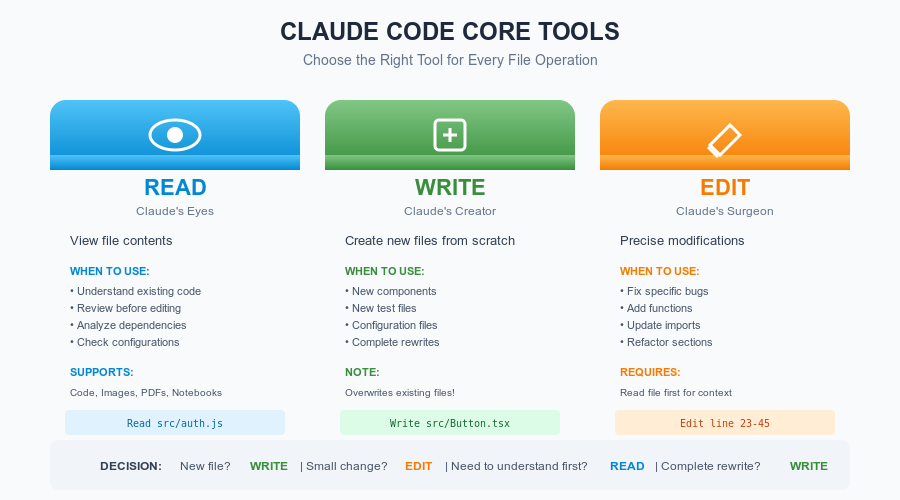 Figure 5.1: The three core file
operation tools – Read (view), Write (create), and Edit (modify) – each
serving a distinct purpose.
Figure 5.1: The three core file
operation tools – Read (view), Write (create), and Edit (modify) – each
serving a distinct purpose.
Basic usage:
You: Read src/app.js

Claude: [Using Tool: Read]
        File: src/app.js

             1  import express from 'express';
             2  import routes from './routes';
             3
             4  const app = express();
             5  const PORT = 3000;
             6
             7  app.use('/api', routes);
             8
             9  app.listen(PORT, () => {
            10    console.log(`Server running on ${PORT}`);
            11  });

        I can see this is an Express server...
Notice the line numbers – they are crucial for referring to specific locations.
What Read can handle:
- Code files (.js, .py, .java, .ts, .go, and so on)
- Config files (.json, .yaml, .env, .config)
- Documentation (.md, .txt, .rst)
- Images (.png, .jpg, .gif) – Claude describes what it sees using vision capabilities
- PDFs – extracts text and analyzes visual elements (max 100 pages, under 32MB)
- Jupyter Notebooks (.ipynb) – reads all cells with code and outputs
It cannot read binary files (.exe, .dll), compiled files (.pyc, .class), or encrypted PDFs.
Reading specific sections:
You: Read src/app.js lines 10-50
You: Read src/app.js starting from line 100
You: Read package.json, README.md, and src/index.js
The golden rule: always read before editing. Do not ask Claude to fix code it has not seen.
Bad:  Fix the bug in app.js
Good: Read app.js and fix the bug
The first version forces a back-and-forth (“I need to read the file first…”). The second is direct and efficient.
The Write Tool – Creating New Files
Write creates a new file or completely replaces an existing one. It is an all-or-nothing operation.
When to use Write:
- Creating a new file
- Completely replacing a file’s contents
- Generating boilerplate
When NOT to use Write:
- Modifying part of an existing file (use Edit)
- Adding to an existing file (use Edit)
Example – creating a config file:
You: Create .prettierrc with 2-space indentation,
     single quotes, no semicolons, trailing commas

Claude: [Using Tool: Write]
        File: .prettierrc
        {
          "tabWidth": 2,
          "singleQuote": true,
          "semi": false,
          "trailingComma": "es5"
        }
Example – creating multiple related files:
You: Create a User model with:
     - models/User.js (Mongoose schema)
     - controllers/userController.js (CRUD operations)
     - routes/userRoutes.js (Express routes)
     Use ES modules and include error handling.

Claude: [Writes all three files]
The overwrite warning: If the file already exists, Write replaces it entirely. Claude will warn you:
Claude: src/app.js already exists.
        Write will OVERWRITE the entire file.
        Did you mean to Edit instead?
Be specific upfront to avoid multiple rounds:
Bad:  Create a user model
      [Claude creates minimal model]
      Add email and password fields
      Add validation
      Add timestamps

Good: Create models/User.js with:
      - email (required, unique, validated)
      - password (hashed with bcrypt)
      - name (required)
      - createdAt, updatedAt timestamps
      - methods: comparePassword, generateToken
      Use Mongoose schema
The Edit Tool – Precise Modifications
Edit finds exact strings in a file and replaces them. It is the tool you will use most once your project exists.
How it works:
- Claude reads the file (required before editing)
- Finds the exact text to replace
- Swaps in the new text
- Everything else stays untouched
Example – changing a value:
You: Read src/app.js and change the port from 3000 to 8080

Claude: [Using Tool: Read]
        [Sees: const PORT = 3000;]

        [Using Tool: Edit]
        File: src/app.js
        Old: const PORT = 3000;
        New: const PORT = 8080;

        Updated port to 8080.
Example – adding functionality:
You: Read src/auth.js and add rate limiting to the login function

Claude: [Reads file, sees current login function]

        [Using Tool: Edit]
        Old:
        async function login(email, password) {
          const user = await User.findOne({ email });

        New:
        async function login(email, password) {
          await checkRateLimit(email);
          const user = await User.findOne({ email });

        Added rate limiting to login function.
Example – adding an import:
You: Read src/app.js and add an import for helmet middleware

Claude: [Using Tool: Edit]
        Old:
        import express from 'express';
        import routes from './routes';

        New:
        import express from 'express';
        import helmet from 'helmet';
        import routes from './routes';
The precision requirement: Edit uses exact string matching, including every character, all whitespace, and indentation. This is why reading first is essential – Claude sees the exact formatting and matches it precisely.
Replace all: When you need to change every occurrence:
You: Read src/utils.js and replace all instances of "var" with "const"

Claude: [Using Tool: Edit, replace_all: true]
        Replaced 15 occurrences.
Choosing the Right Tool
| Situation | Tool | Why |
|---|---|---|
| Creating a new file | Write | Nothing exists yet |
| Replacing entire file content | Write | Starting fresh |
| Changing part of a file | Edit | Surgical precision |
| Adding code to existing file | Edit | Preserves everything else |
| Renaming across a file | Edit (replace_all) | Catches all instances |
| Understanding existing code | Read | See before you act |
The most common workflow: Read a file, then Edit it. You will use this pattern dozens of times per session.
Multi-File Workflows
Real features touch multiple files. Claude coordinates changes across all of them.
Pattern 1 – describe the feature, let Claude coordinate:
You: Add JWT authentication to my Express app:
     - Update User model with password field
     - Create auth middleware for token verification
     - Add login/logout/register routes
     - Write tests for all endpoints
     - Update API documentation

Claude: I'll implement this across multiple files.

        [Reads package.json, app.js, models/User.js]
        [Edits User.js -- adds password field and hash method]
        [Writes middleware/auth.js -- creates token verification]
        [Writes routes/auth.js -- creates endpoints]
        [Edits app.js -- registers new routes]
        [Writes tests/auth.test.js -- comprehensive tests]
        [Edits docs/API.md -- adds endpoint documentation]

        Authentication feature complete across 6 files.
Pattern 2 – step through changes in order:
You: Add a delete user feature. Work through these in order:
     1. Read models/User.js -- add a softDelete method
     2. Read controllers/userController.js -- add deleteUser function
     3. Read routes/userRoutes.js -- add DELETE /users/:id route
     4. Create tests/deleteUser.test.js
     5. Read docs/API.md -- add delete endpoint docs
Best practices for multi-file changes:
- Plan before executing. Ask Claude what files need to change before it starts.
- Change in logical order. Models first, then controllers, then routes, then tests, then docs.
- Use git commits between logical groups. Commit the model change, then the controller change, and so on.
Try This Now – Exercise 1
Open an existing project (or the task-manager from Chapter 4) and practice the Read-Edit workflow:
> Read index.js and add input validation that rejects
  empty task descriptions with a helpful error message
After Claude makes the edit, verify it:
> Read index.js to confirm the validation was added correctlyTry This Now – Exercise 2
Practice coordinating a multi-file change:
> I want to add a "priority" field to tasks (low/medium/high).
  This needs changes in:
  1. The task storage logic (add priority field, default to "medium")
  2. The CLI (accept --priority flag on add command)
  3. The list display (show priority with color coding)
  4. The tests (cover priority in all test cases)
  Plan what needs to change, then implement it.
Watch how Claude coordinates reads and edits across multiple files to keep everything consistent.
Deep Dive (optional, for mastery)
Context and Performance
Every file you read consumes context from Claude’s working memory (200,000 tokens total, roughly 150,000 words).
Practical guidelines:
- Small files (under 500 lines) – negligible impact, read freely
- Medium files (500-2,000 lines) – about 1-5% of context each
- Large files (2,000+ lines) – about 5-15% of context each
- Very large files (over 25,000 tokens) – hit the single-file limit, use line ranges
Tips to manage context:
- Read only what you need for the current task
- Use
/clearbetween unrelated tasks - Specify line ranges for large files:
Read app.js lines 100-200 - Use search tools (Chapter 7) to find the right file, then read it
- Monitor the context meter in the interface
Chapter 9 covers context management strategies in depth.
Advanced Read Patterns
Compare files:
You: Read file1.js and file2.js
     Compare their approaches and recommend which is better
Learn from code:
You: Read examples/advanced-pattern.js
     Explain this pattern and when to use it
Reading images (vision capabilities):
You: Read designs/mockup.png and describe the layout

Claude: [Reads image]
        I see a landing page with a hero section,
        blue gradient background, three feature cards...
The Indentation Challenge
Edit failures most often come from whitespace mismatches. If a file uses tabs but the edit string uses spaces, the match fails.
The solution is simple: let Claude read first. Claude sees the exact formatting and generates a matching edit string. When you describe what to change (“change the port to 8080”) rather than providing exact replacement text, Claude handles the formatting automatically.
When Things Go Wrong
Edit fails with “Could not find exact match”
The old text does not match what is actually in the file. This usually means whitespace or indentation differences.
Fix: Ask Claude to re-read the file and try again. Describe the change you want rather than providing the exact old text.
You: Re-read src/app.js and change line 23 to use port 8080

Claude: [Reads file, sees actual formatting, edits correctly]
Edit fails with “old_string appears multiple times”
The text you want to change exists in more than one place. Claude needs more context to identify which occurrence to change.
Fix: Include surrounding lines to make the match unique, or use
replace_all: true if you want all instances changed.
You: Read app.js. There are two PORT declarations.
     Update only the one in the server setup section
     (near the express initialization) to 8080.
Write accidentally overwrites an important file
Recovery:
# If you committed before the session (you should have!)
git checkout HEAD -- filename

# If you didn't commit, check editor auto-save backups
Prevention: always commit before a Claude Code session. And when you want to modify an existing file, say “edit” or “update” rather than “create” or “write.”
Read on a huge file fills your context
Error: File content (28,375 tokens) exceeds maximum allowed tokensFix: Read specific line ranges instead:
You: Read largefile.js lines 1-1000Or search for the specific function:
You: Search for "processPayment" in largefile.js,
     then read just that section
Or ask Claude to help split the file into smaller modules.
“File not found” error
Check these in order:
- Is the path correct? (Typos are common)
- Are you in the right directory?
- Does the file exist? Ask Claude:
Run: ls src/
“File content has changed” during edit
Something modified the file after Claude read it (you edited it manually, a file watcher ran, or a git operation changed it).
Fix: Re-read the file and try the edit again.
“Permission denied” when writing
The target directory may not exist or you may not have write permissions:
You: Run: mkdir -p config
     Now write config/database.js
Quick Troubleshooting Checklist
When file operations fail, check in this order:
- Is the file path correct? (
lsto verify) - Does the file exist? (search with glob patterns)
- Do you have permissions? (
ls -lato check) - Is it a text file? (binary files will not work)
- Is it too large? (over 25K tokens needs line ranges)
- Did you read before edit? (Edit requires Read first)
- Is context getting full? (
/clearto free space) - Did the file change since the last read? (re-read it)
- Are you using the right tool? (Write for new, Edit for existing)
- Did you commit first? (git is your safety net)
Chapter Checkpoint
What you learned:
- Read retrieves file contents so Claude can understand your code before acting on it
- Write creates new files or completely replaces existing ones
- Edit makes precise, targeted changes using exact string matching
- The Read-then-Edit workflow is the most common pattern in daily use
- Multi-file changes should be planned in logical order and tracked with git
You can now:
- Read any file type Claude supports (code, config, images, PDFs, notebooks)
- Create new files with complete specifications in a single prompt
- Edit existing files precisely without disturbing surrounding code
- Coordinate changes across multiple files for a single feature
- Diagnose and fix common file operation failures
Next up: Chapter 6 covers the Bash tool and Search tools – how Claude runs commands and finds things across your entire codebase.
End of Chapter 5